
Overview #
Each event can have its own emails, sent once per registrant.
Turn Them On First #
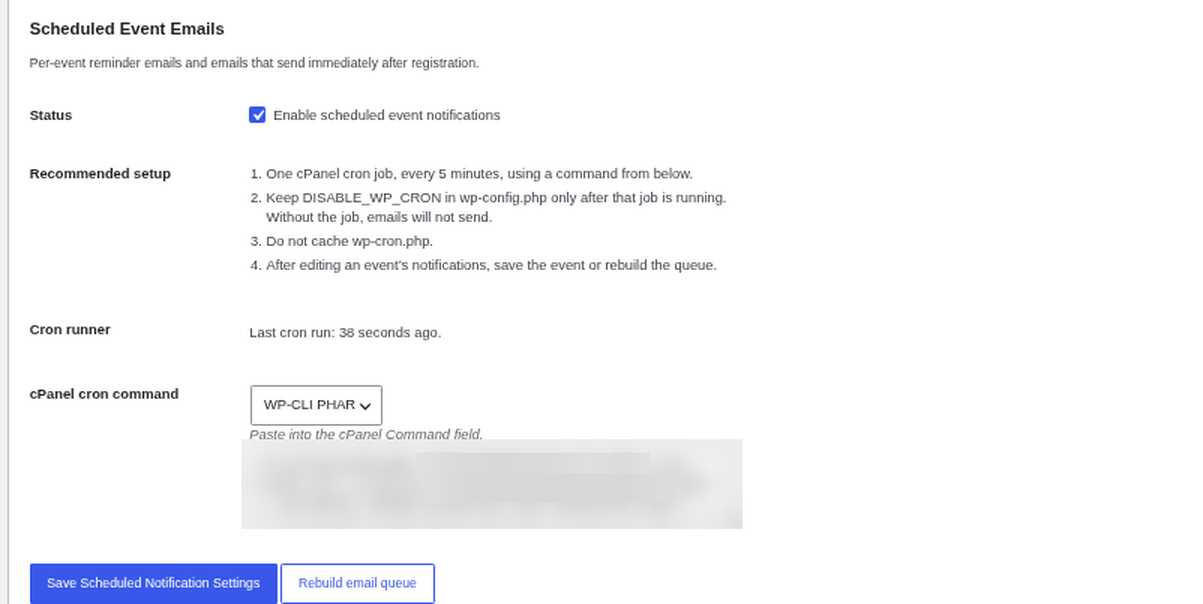
In Huski Events > Settings > General, Scheduled Event Emails, tick Enable scheduled event notifications and set up the cron job shown (every 5 minutes).
Adding an Email to an Event #
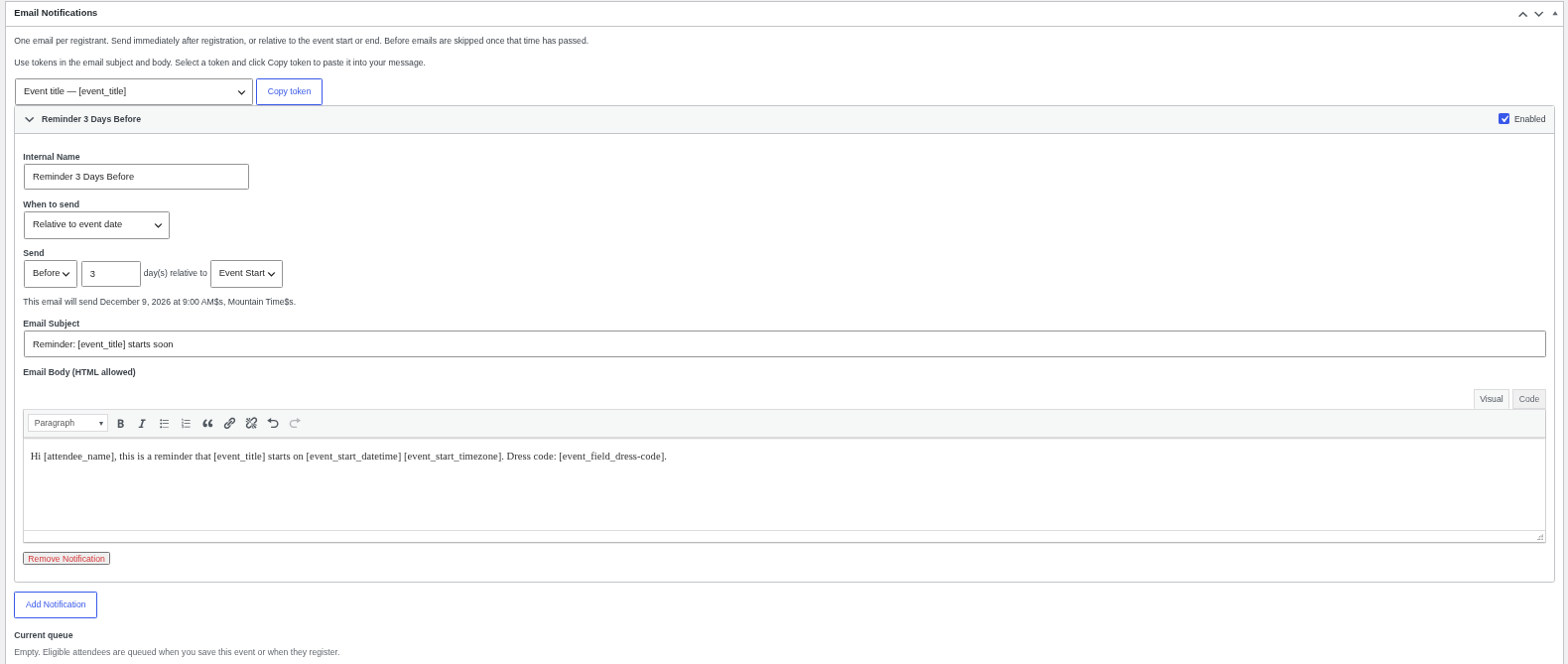
- Edit the event and find Email Notifications.
- Click Add Notification and give it an Internal Name.
- Choose Immediately after registration, or a number of days Before/After the Event Start or Event End.
- Write the subject and body, using tokens, and update the event.
Tokens #
Examples: [event_title], [event_start_datetime], [attendee_name], [ticket_label], [registration_total], [payment_status]. Registration and event field tokens are also listed.
Best Practices #
- “Before” emails are skipped once their time has passed, so add reminders before registrations open.
Troubleshooting #
- “Scheduled event emails are off.”: Enable them in Settings.
- Emails are late: Fix the cron job, then click Rebuild email queue.
That’s it, dawg!


